Flying Fairy Video Effect Prompt
The Prompt
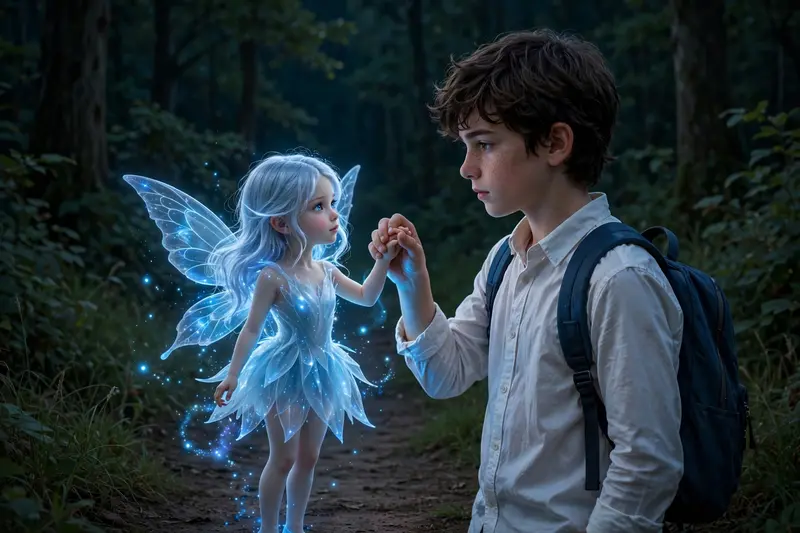
Use the uploaded image as the exact reference trame. Keep the boy, face direction, pose, white shirt, hand position, background trees, night atmosphere, lighting, colors, composition, and camera angle completely unchanged. No background change, no dress change, no face change, no color grading change, no extra objects, no watermark. Action: A beautiful glowing blue fairy-like girl appears from a short distance directly in front of the boy, floating slowly toward him in a straight line. She is looking only at the boy. She gently flies closer, extends her hand, and places her hand into the boy’s already raised hand exactly as shown. The boy slowly pulls her toward himself using their joined hands. The fairy moves naturally toward him and softly lands on the ground directly in front of him while maintaining eye contact with him. Her movement is smooth, magical, romantic, and realistic. Blue particles and soft glowing light trail around her body.** Camera: Completely locked camera, no zoom, o pan, no tilt, no shake, no camera movement no angle change. Motion: Only the fairy moves toward the boy and lands. The boy remains almost exactly like he original image, with only a very slight natural arm movement while pulling her closer. Style: Cinematic fantasy, realistic VFX, smooth slow motion, dreamy blue glow, ultra realistic, igh quality, 4K, 24 fps, clean output, no text,no logo, no watermark
Make it yours
Describe one change and free AI rewrites this prompt for you.
Works with
CapCut, VN Video Editor, Runway, Pika, Kaiber - paste the prompt or use it as a video idea.
Tip: swap names, colors, or details to make it yours. Shorter prompts often work better - remove lines you don't need.
How to use this video prompt (step by step)
In CapCut: 1) Open CapCut and start a new project. 2) Add your clips or photos in the order the prompt describes. 3) Tap "Text" to add the captions from the prompt. 4) Go to "Effects" and pick transitions that match the mood. 5) Export in 1080p and share.
In VN Video Editor: 1) Create a new project in VN. 2) Import your media following the prompt's shot list. 3) Use the "Text" tool for titles and the "Music" tab for trending audio. 4) Apply filters lightly - don't overdo it. 5) Export and post.
In AI video tools (Runway, Pika, Kaiber): Copy the prompt above and paste it directly as your text prompt. Adjust the camera-movement words (like "slow zoom" or "pan left") to control the motion.